
Yes, you can.
For example, you can automatically forward “inquiry emails” to a Folder on Stock.
In this case, you can centrally manage all “inquiry emails” on Stock.
In addition, by “Tasking” or “Messaging” each inquiry, you can ensure that no inquiry goes unanswered!
[Caution]
You need to set up an integration with your email beforehand to set automatic forwarding.
If you have not set it up, check this article first.
❚ How to set automatic forwarding
The way to set it up is different between each email client. Set it up in the following way.
* Here is the way to set it up on “Gmail”, “Yahoo! Mail”, “Outlook”, and “Thunderbird”. If you use another email client, refer to each email client page.
<Gmail>
1. Click “See all settings” in gear icon in the upper right corner.

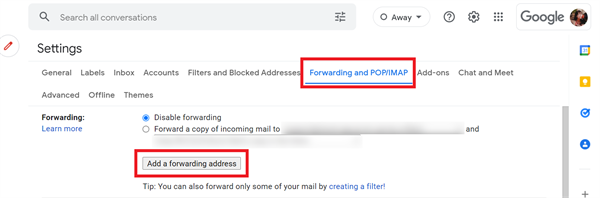
2. Open “Forwarding and POP/IMAP” tab and click “Add a forwarding addresss” button.
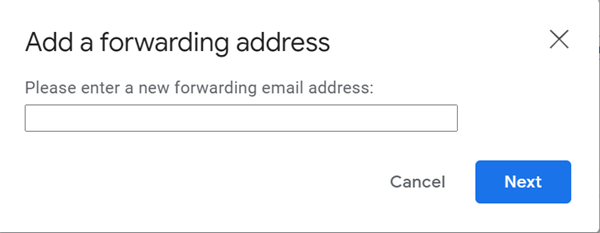
3. Add “email address on Stock” you set to “Address to forward” and click “Continue”.
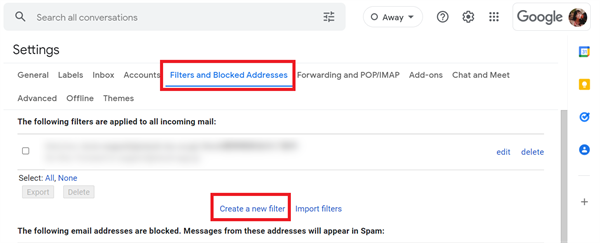
4. Open “Filters and blocked Addresses” tab and click “Create a new filter”.
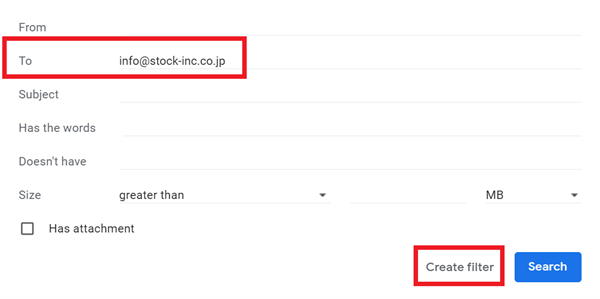
5. Enter a conditon of forwarding.
e.g.) When “[email protected]” is designated as “To”
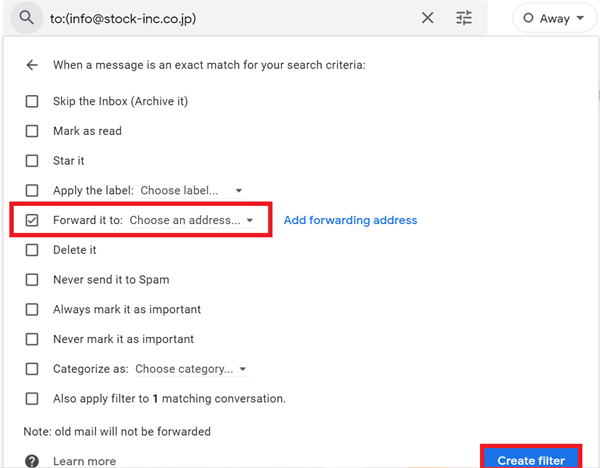
6. Check “Forward it to” and select the address you added at step3 in “Select addresses” field, and click “Create filter”. Then the setting is complete.
<Outlook>
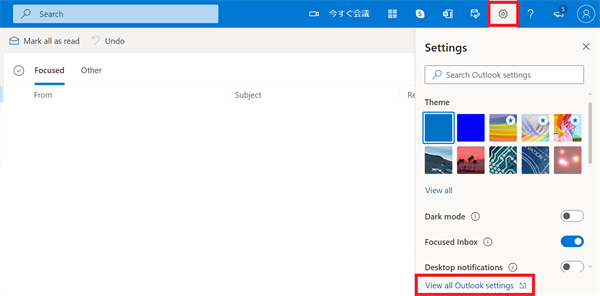
1. Click gear icon in the upper right corner and “View all Outlook settings”.
2. Open “Forwarding” tab and check “Enable forwarding”. Enter “email address on Stock” you set and click “Save” button. Then the setting is complete.

<Outlook (desktop app)>
Check the following page for how to set it up.
Use rules in Outlook Web App to automatically forward messages to another account
<Thunderbird>
1. Click “Tools” and “Message filter”.
2. Click “New” button.
3. Enter a condition of forwarding and click “Forward messages”. Enter “email address on Stock” and click “OK” button.
e.g.) When “[email protected]” is included in “To:”.
4. Click “Run now” and the setting is complete.