
When you write meeting minutes for example, you may always write the items such as date, place, members, topic, decision, but it is not efficient to write the same items every time.
You can insert fixed contents with Template only by clicking a button.
<Desktop>
❚ How to create Template
1. There is “Template” button in the lower of Note.

2. Click “Template” button.

3. Create a new Template from “Create a Template” button.

4. You can create Template like the example below.

❚ How to insert Template
1. Click “Insert” button.
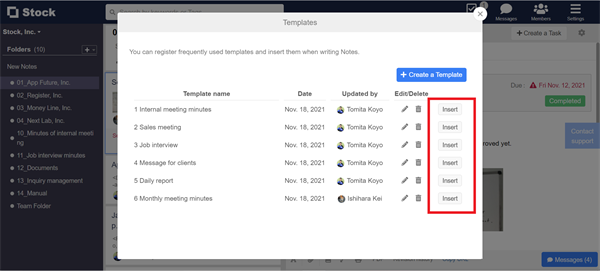
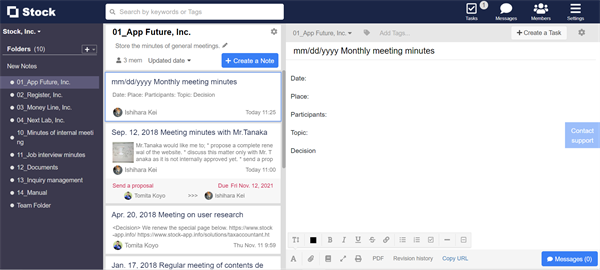
2. The fixed contents of Template is inserted.
<Mobile>
❚ How to create Template
1. Tap “Settings” in the upper right corner of Note and “Insert a Template”.
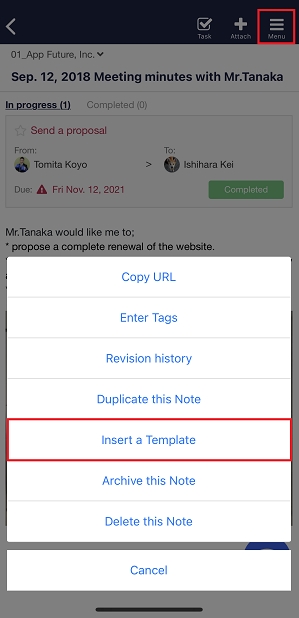
2. Tap “+” in the upper right corner.
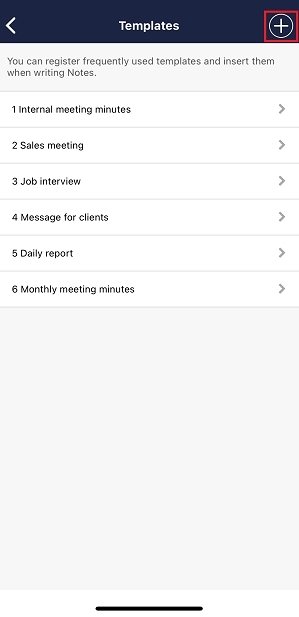
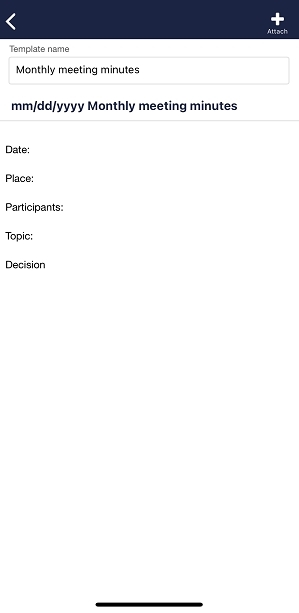
3. You can create Template like the example below.
❚ How to insert Template
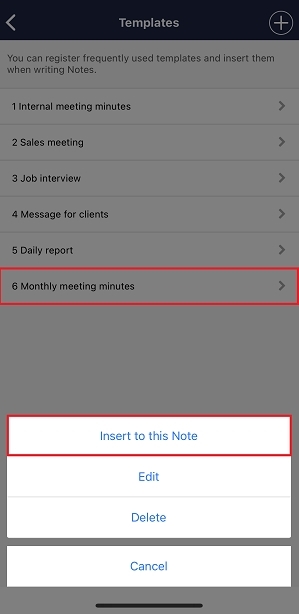
1. Tap “Settings” in the upper right corner of Note and “Insert a Template”.

2. Tap “Insert to this Note”.
3. The fixed contents of Template is inserted.
