
You can connect with Evernote in the following way and import data in Evernote into Stock as follows.
| Evernote | Stock |
|---|---|
| Notebook | Folder(newly created) |
| Note | Note |
| Tag | Tag |
*The Evernote integration feature is only available in the browser version (e.g. Google Chrome) on PCs.
*Features specific to Evernote may not import properly into Stock.
*If the number of notes designated for import or the number of images/files attached to the notes is large, the import process may take several hours to several days.
*Up to 1,000 notes per notebook can be imported into Stock; if you have more than 1,000 notes in a notebook, please split the notebook into multiple notebooks before performing the import.
*The creation and update dates of the notes will be taken from the respective dates in Evernote.
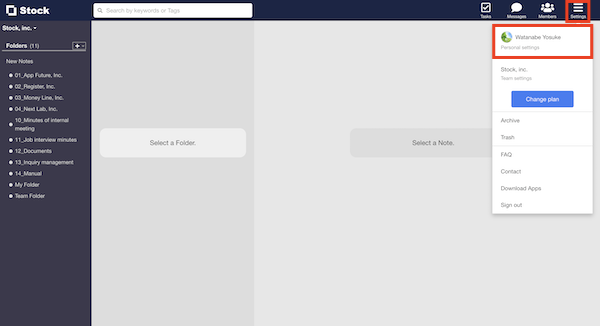
(1) From the header, click on “Settings” > “Personal Settings”.
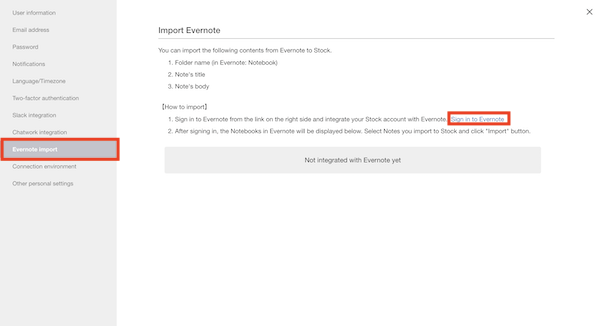
(2) Select “Evernote Import” from the left menu and click “Sign in to Evernote”.
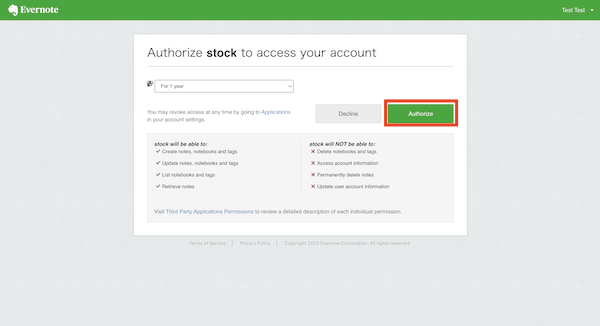
(3) Click the “Authorize” button when you are redirected to the Evernote screen.
*If you are not signed in to Evernote, you will be redirected to the sign in screen.
(4) When a list of Evernote notebooks is displayed, select the notebook you wish to stock in Stock and click “Import”.
*Note that notebooks owned by anyone other than yourself will not be eligible for import.
If the import is successful, you will receive an email notification.
On the other hand, if the import exceeds the limit of your plan, the import will fail. In that case, you will still receive a notification e-mail, so please follow the instructions in the e-mail to perform the import again.